

Custom Field Types and Timesheet Templates
How SaveTrees Timesheets Now Work - Custom Field Types Explained
If you've been using SaveTrees timesheets for a while, you might have noticed things look a little different. We've rolled out a significant update that gives you much more control over what your timesheets collect - without making things more complicated for your workers or authorisers.
This post walks you through what's changed, how the new system works, and where to go if you'd like a hand setting things up for your specific situation.
A quick overview
Timesheets in SaveTrees now have two distinct parts working together:
- Custom Field Types (CFTs) - the new addition that defines what gets tracked
- Timesheet Templates - now updated, these control how timesheets are structured and submitted
Together, they give you a flexible building-block system. You create the time categories you need, then combine them into templates that suit different teams, roles or clients.
Release points
What are Custom Field Types?
A Custom Field Type is simply a category of time you want to record. Think of them as the ingredients — the raw building blocks that go into a timesheet.
Some examples of CFTs you might create:
- Standard Hours
- Overtime
- Night Shift
- On-Call Time
- Sleep-In Shift
- Travel Time
- Project A Hours
- Holiday (paid or unpaid)
Each CFT is reusable. Once created, you can add it to as many Timesheet Templates as you like. You're not recreating the wheel every time - just mixing and matching what you've already built.
What are Timesheet Templates?
If CFTs are the ingredients, Templates are the recipe.
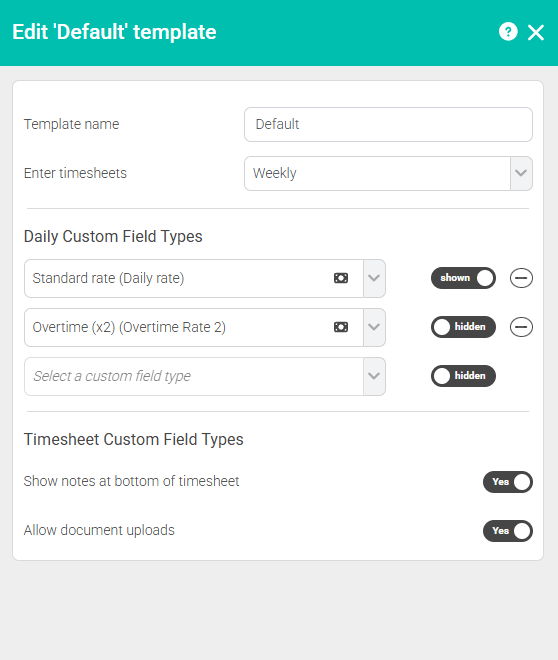
A Timesheet Template pulls together the CFTs you've created and decides:
- Which categories appear on the timesheet and in what order
- Whether certain categories are shown by default or only appear when selected
- Whether the timesheet is submitted weekly or monthly
- Whether a notes section appears at the bottom
- If the timesheets can have documents assigned to them
Workers only ever see the templates they've been assigned to. They don't need to know any of this - they just complete what's in front of them.
You can have as many templates as you need. Most agencies will only ever need one, maybe two, but if you work across multiple disciplines or have teams with very different working patterns, you can create a template tailored to each. It's really about creating flexibility while keeping it neat.
How the two parts fit together
Here's a simple example to make it concrete.
A care agency has three types of time they need to track: standard hours, sleep-in shifts, and travel time. They create a CFT for each one. They then create a single Weekly Timesheet Template, add those three CFTs to it, and assign it to their care staff.
That's it. Workers complete their timesheet as normal. Managers review and approve. The agency now has clean, structured data for each type of time - all in one place.
If that same agency also has office staff who submit monthly and don't need the sleep-in or travel categories, they'd simply create a second template for that group where it just uses the standard hours CFT.
What this makes possible
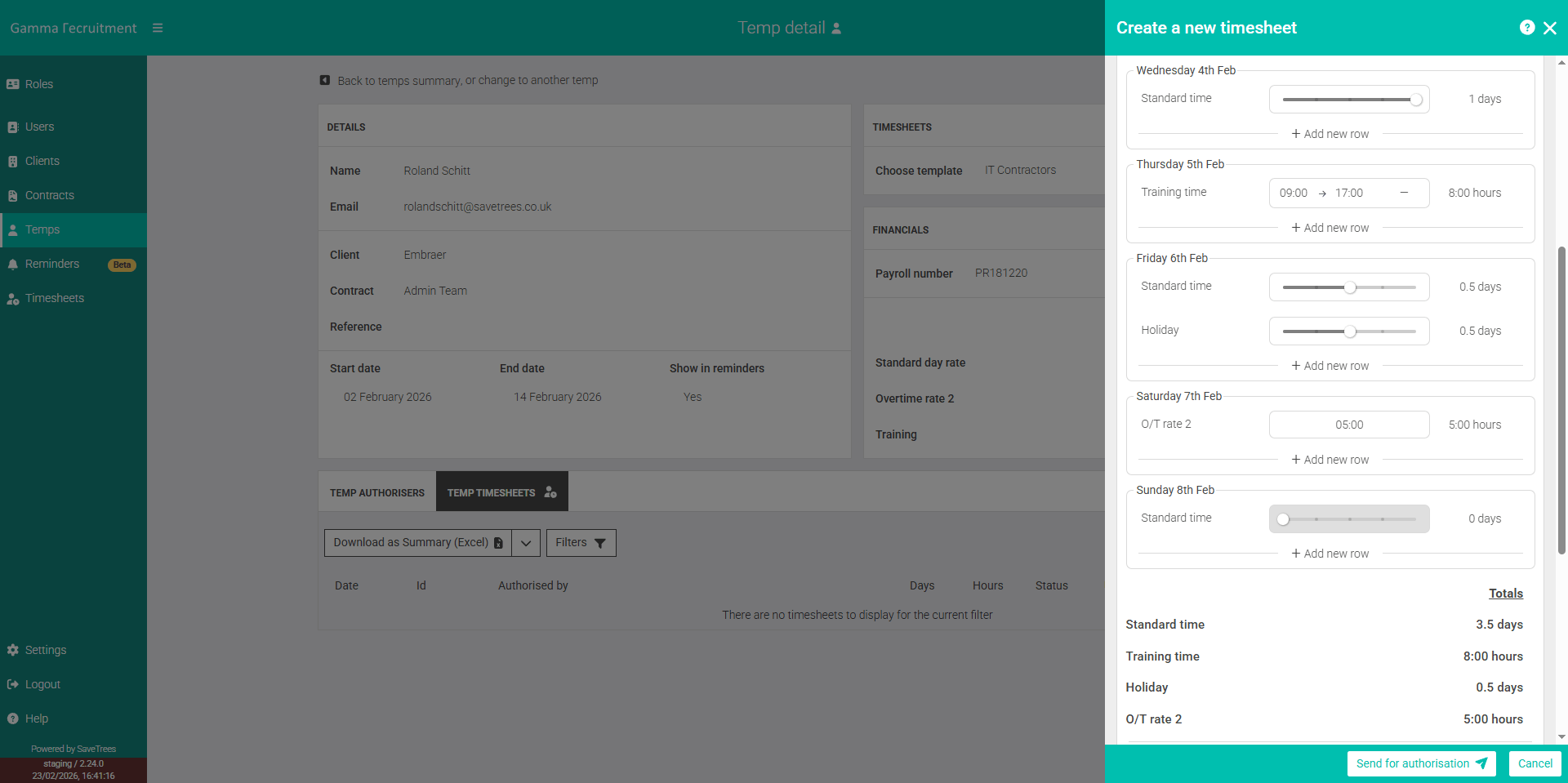
The new structure opens up things that weren't previously possible:
- Add different types of overtime (e.g. weekday vs weekend)
- Allow workers to assign time to specific projects or clients
- Separate billable and non-billable time
- Record different shift patterns in a structured way
- Make holiday and absence entries paid or unpaid
- Control what appears by default versus what workers select themselves
- Standardise submissions across teams or contracts
What about your existing timesheets?
First off, don't worry, if you don't do anything then nothing will change, except the UI improvement.
We've automatically upgraded all existing timesheets so they work exactly as before for workers and authorisers. There's nothing you need to do.
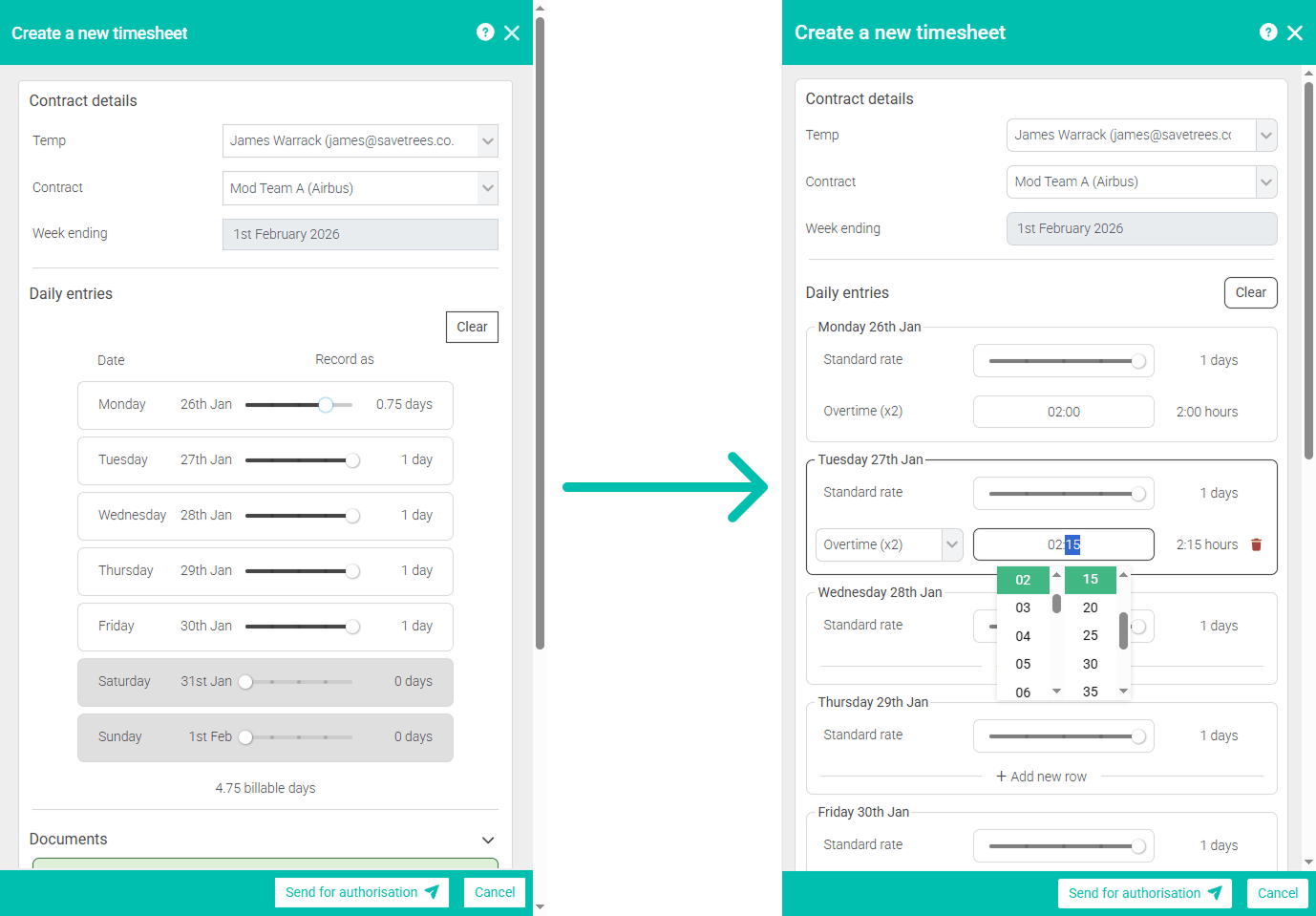
If you want to take advantage of the new flexibility - adding new time categories, splitting out different types of work, or restructuring your templates - that's when you'd head into the settings and start building/adjusting things.
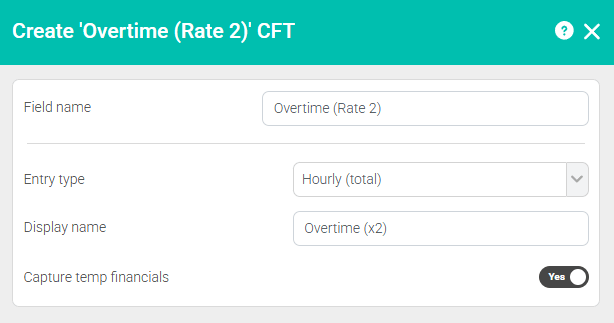
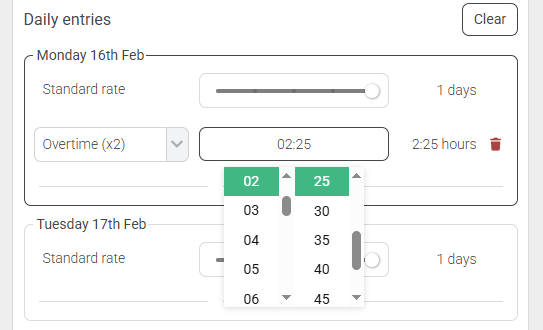
In the example below, we've added a new CFT to track overtime, so you may want to do similar.
Want to explore what's possible for your setup?
The help section covers everything you need:
- Timesheets overview — how the whole system fits together
- Custom Field Types — how to create, edit and manage your CFTs, including financial tracking
- Timesheet Templates — how to structure templates, control visibility, and assign workers
Free 1-to-1 walkthrough sessions
If you'd like someone to walk you through what's available and how it could work for your particular setup, we offer 1-to-1 sessions. As with all of our support, these are absolutely free - no catch, no sales pitch. We just want to make sure you're getting the most out of the system.
👉 Book a free walkthrough session here
We can show you how to configure CFTs for your specific working patterns, help you think through how many templates you need, and answer any questions about how it all fits together.